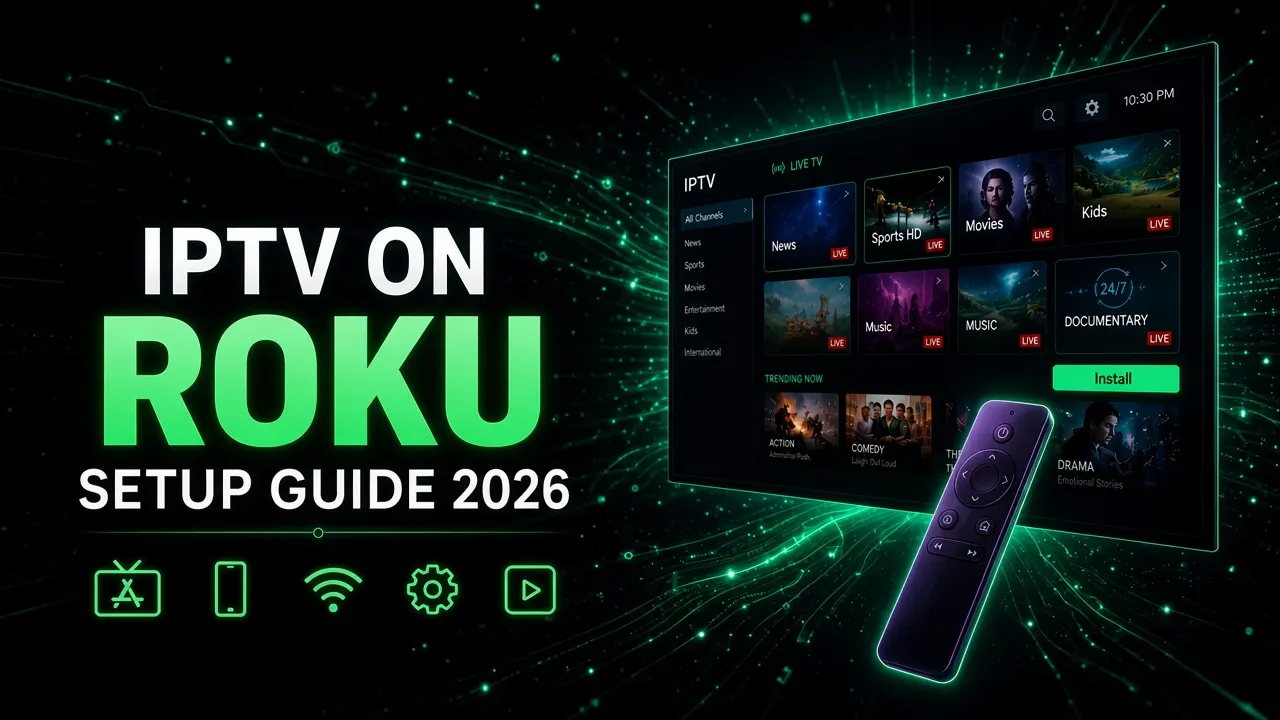
Roku can't install Android apps, so IPTV Smarters Pro and TiviMate don't exist on Roku. You have three ways to watch IPTV anyway: install an IPTV player from the Roku Channel Store (IBO Player Pro is the one we recommend), mirror an IPTV app from your Android phone or iPhone, or plug a Fire TV Stick into a spare HDMI port. If you watch a lot of live sports, the Fire TV Stick is the most reliable of the three.
If you own a Roku, you've probably searched the store for "IPTV Smarters", found nothing, and then found three blog posts telling you three different things. One says it's easy, one says it's impossible, and one wants you to type a secret code on your remote.
Here's the honest version. Roku is a great box for Netflix and Hulu, but it's the most restricted platform for IPTV. It still works, though, and this guide shows you every option that actually works on a Roku TV or Roku stick in 2026, which one to pick, and how to set it up.
Why IPTV Smarters Isn't on Roku
Most IPTV apps are built for Android. That's why they install easily on a Firestick, an Android TV box, or a Google TV, where you can download them directly or "sideload" them with an app like Downloader.
Roku runs its own system, Roku OS. It can't open Android APK files, and there's no Google Play Store. You can only add apps that Roku has approved for its Channel Store, and Roku reviews every app before it's listed. IPTV players that let you load your own playlist do get listed from time to time, but they also get removed, sometimes without notice.
So when you search for "IPTV Smarters Pro" on a Roku, you're looking for an Android app on a device that can't run Android apps. Anything in the store with a similar name was made by someone else.
Watch out for copycats and "private channel codes". You'll find websites offering secret codes that add IPTV channels to your Roku. Most are outdated, and some come from unknown developers. Stick to apps you can find in the official Channel Store, and never type your IPTV login into an app you can't identify.
IPTV Apps and Options for Roku at a Glance
Before you start, find your Roku model. Go to Settings → System → About. You'll need it to know whether your Roku supports screen mirroring and AirPlay.
| Option | What you need | Good for | Downside |
|---|---|---|---|
| IBO Player Pro (our pick on Roku) | Any recent Roku, plus a phone for setup | Watching on the Roku itself, with a TV guide and movies | Small one-time fee after the trial. Store listings can change |
| Screen mirroring | An Android phone or Windows PC | Quick tests, or the odd game night | Your phone must stay on and nearby, and quality depends on your Wi-Fi |
| AirPlay | An iPhone, iPad or Mac, plus an AirPlay-compatible Roku | iPhone users | Same as mirroring, and not every Roku model supports it |
| Fire TV Stick | A spare HDMI port | Daily viewing and live sports | You buy one more device (often under $30 on sale) |
Option 1: The Best IPTV Player for Roku (IBO Player Pro)
Of the IPTV players for Roku that are listed in the store right now, IBO Player Pro is the one we recommend for most Roku TV and Roku stick owners. It's an IPTV player, not a channel provider. It comes with no channels. You add your own subscription, and the app shows your live channels, TV guide, movies and series. It's listed in the Roku Channel Store in the US, and it's the same family of apps we recommend for Samsung and LG smart TVs, so the setup will feel familiar if you've used it before.
Have your IPTV login ready before you start. That's either an Xtream Codes login (server URL, username and password) or an M3U link (one long web address). If you're not sure which one you have, our IPTV beginner's guide explains the difference.
1. Add the app to your Roku
- Press Home on your Roku remote.
- Open the Channel Store from the left menu, or use Search.
- Search for IBO Player Pro. In the US it may be listed as Ibo Player Pro(US).
- Select it, choose Add app (older menus say "Add channel"), then open it.
2. Write down your device details
The app shows a MAC address and a Device Key. Take a photo of the screen with your phone. You'll need both in a minute, and it's easy to mix up a 0 and an O.
3. Add your playlist from your phone
- On your phone or computer, open the website shown on the app's screen. Some versions show a QR code you can scan instead.
- Log in with the MAC address and Device Key from your TV.
- Choose to add a playlist. We recommend the Xtream Codes option: enter a name like "Pro IPTV", then the server URL, username and password.
- If you only have an M3U link, choose the M3U option and paste the whole link.
- Save.
4. Reload the app on your Roku
Close IBO Player Pro on the Roku and open it again. Your channels, movies, series and TV guide will load. A big playlist can take a minute or two the first time, especially on older Roku Express models. After that it's faster.
About the cost: the app has a 7-day free trial. After that it asks for a small one-time activation fee per device, paid to the app developer, not to your IPTV provider. Prices and store listings change, so check the current price in the app before you pay.
Quick check: if you see an error instead of channels, it's almost always a typo in the server address. Look for a missing "http://", an extra space at the end, or a wrong port number. Copy and paste the details instead of typing them.
Option 2: Mirror From an Android Phone or Windows PC
Screen mirroring shows your phone's screen on the TV. You run the IPTV app on your phone, for example IPTV Smarters Pro from the Google Play Store, and the Roku simply displays it. Nothing needs to be installed on the Roku.
Turn on mirroring on the Roku
- Go to Settings → System → Screen mirroring.
- Under Screen mirroring mode, choose Prompt (Roku asks each time) or Always allow.
Connect from your Android phone
- Make sure the phone and the Roku are on the same Wi-Fi network.
- Swipe down from the top of the screen and tap Smart View (Samsung phones), Screen Cast, or Cast. The name depends on your phone brand.
- Pick your Roku from the list and accept the prompt on the TV.
- Open your IPTV app on the phone, start a channel, and turn the phone sideways for full screen.
On a Windows PC, press Windows + K or go to Settings → System → Display → Connect to a wireless display, then select your Roku.
Good to know: Google Pixel phones don't support this kind of mirroring to Roku, and a few older Roku Express models don't either. Mirroring also drains your phone's battery and depends heavily on your Wi-Fi. It's fine for a test or a movie, but it's not great for a three-hour game. Plug your phone into a charger and keep it close to the router.
Option 3: AirPlay From an iPhone or iPad
iPhones don't use the mirroring above. They use Apple's AirPlay, which many newer Roku players and most current Roku TVs support. Check the model you found under Settings → System → About against Roku's official AirPlay compatibility list.
- On the Roku, go to Settings → Apple AirPlay and HomeKit and make sure AirPlay is On.
- Connect the iPhone and the Roku to the same Wi-Fi network.
- Open your IPTV app on the iPhone.
- Open Control Center, tap Screen Mirroring, and choose your Roku. Enter the code shown on the TV if it asks.
The same limits apply as with Android mirroring: keep the phone charged and close to the router, and don't lock the screen while you're watching.
The Most Reliable Fix: Add a Fire TV Stick
This is the advice we give most Roku owners who want IPTV as their main way of watching TV. A Roku TV is still a normal TV with HDMI ports. Plug a Fire TV Stick (or any Android TV / Google TV stick) into a spare port, switch the input, and you get the full app selection: IPTV Smarters Pro, TiviMate and the rest. The apps stay installed, update normally, and handle large playlists and live sports better than mirroring.
You keep your Roku for Netflix, Hulu and everything else, and use the stick for IPTV. Once it's plugged in, follow our Firestick IPTV setup guide or the TiviMate setup guide for step-by-step instructions.
Pick the right stick. The Fire TV Stick 4K Select and newer Fire TV Sticks run Amazon's Vega OS and can't install IPTV apps. Choose a Fire OS model such as the Fire TV Stick 4K Max, or an Android TV / Google TV device.
What About Roku Developer Mode?
Some sites tell you to press a secret button sequence to unlock developer mode and "sideload" an IPTV app. That mode is real, but it's built for app developers testing their own apps, not for everyday viewers. We don't recommend it:
- You can only install one sideloaded app at a time. Installing another one replaces it.
- Sideloaded apps don't update by themselves, and a factory reset removes them.
- You install the app file from a computer, so you have to trust whoever made it with your IPTV login.
Option 1 or a Fire TV Stick will save you a lot of time.
Get Smoother Streams on Roku
Once IPTV is running, these habits make the biggest difference, especially during live sports:
- Use a network cable if your Roku has a port. Roku Ultra and many Roku TVs have an Ethernet port. A cable connection stays steady in a way Wi-Fi often doesn't.
- On Wi-Fi, stay on the 5 GHz network, and don't hide the router in a cabinet or behind the TV.
- Restart the Roku now and then. Go to Settings → System → Power → System restart (on some models it's directly under System). It clears most slowdowns.
- Keep Roku OS up to date under Settings → System → Software update. Older versions can break AirPlay and app features.
If streams still stutter, our buffering fix guide covers internet speed, VPNs and router settings. Most of it applies to Roku too.
Fixing Common Roku IPTV Problems
| Problem | Most likely cause | Fix |
|---|---|---|
| Can't find IBO Player Pro in the store | The listing changed, or it isn't offered on your model | Search for "Ibo Player Pro(US)", update Roku OS, or use mirroring or a Fire TV Stick |
| App opens but shows no channels | Wrong server URL, or the playlist wasn't saved | Add the details again on the website, save, then close and reopen the app |
| Login error or "playlist expired" | Subscription ended, or a typo in the username or password | Check your welcome message. Passwords are case-sensitive |
| Roku doesn't show up when mirroring | Different Wi-Fi networks, or mirroring is off | Put both on the same network and set Screen mirroring mode to Prompt |
| Mirrored video is choppy | Weak Wi-Fi between the phone, router and Roku | Move closer to the router, use 5 GHz, or switch to Option 1 |
| Buffering during live sports | Busy network or weak signal | Use a cable if possible, and pause big downloads on other devices |
Frequently Asked Questions
Can I install IPTV Smarters Pro on Roku?
No. IPTV Smarters Pro is an Android app, and Roku can't install Android apps or APK files. Use an IPTV player that's listed in the Roku Channel Store, such as IBO Player Pro, mirror IPTV Smarters from an Android phone, or plug a Fire TV Stick into your TV and install it there.
What is the best IPTV app for Roku in 2026?
For most people, it's IBO Player Pro. It's listed in the Roku Channel Store in the US, supports Xtream Codes and M3U links, and you set it up from your phone. It has a 7-day free trial and then a small one-time fee per device. Store listings change, so check the store on your own Roku.
Is there a free IPTV app for Roku?
Sometimes. Free IPTV players for Roku do show up in the Channel Store, but they tend to be basic and many disappear after a while. IBO Player Pro has a 7-day free trial, and screen mirroring from your phone costs nothing. Keep in mind that the app is only the player: the channels come from your IPTV subscription.
Can I watch IPTV on Roku from my iPhone?
Yes, with AirPlay, if your Roku model supports it. Turn on AirPlay under Settings → Apple AirPlay and HomeKit, connect both devices to the same Wi-Fi, then open Control Center on the iPhone and choose Screen Mirroring and your Roku.
Why can't I mirror my phone to my Roku?
Check that both devices are on the same Wi-Fi network and that Screen mirroring mode isn't set to Never under Settings → System → Screen mirroring. A few older Roku Express models and Google Pixel phones don't support it.
Is The Roku Channel the same as IPTV?
No. The Roku Channel is Roku's free, ad-supported lineup of live channels and movies. An IPTV subscription is a separate service with thousands of live channels, sports and on-demand content that you play through an IPTV player app.
Is a Fire TV Stick better than Roku for IPTV?
Yes, if it runs Fire OS. A Fire TV Stick 4K Max can install the full range of IPTV apps, including IPTV Smarters Pro and TiviMate, and they stay installed. The Fire TV Stick 4K Select and newer sticks run Vega OS and can't. If IPTV is the main thing you watch, a Fire OS stick in a spare HDMI port of your Roku TV is the most reliable setup. See our Firestick IPTV guide.
Test It on Your Roku Before You Pay
The easiest way to know which option works best in your home is to try it. Request a free trial with no credit card needed. If you get stuck, send us your Roku model on WhatsApp and we'll help you with the setup as best we can.